
Progress at a glance
Sobriety widgets for every screen.
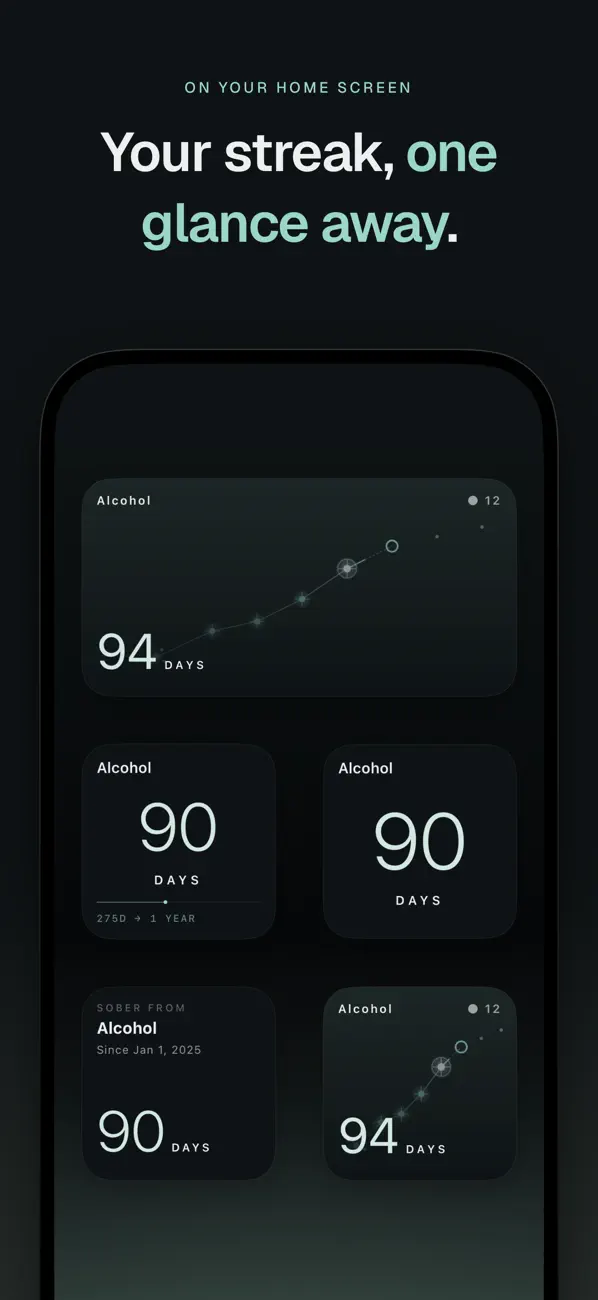
Committed puts your count on the iPhone Home Screen and Lock Screen, the Mac desktop and your watch face, in six styles that match the app.
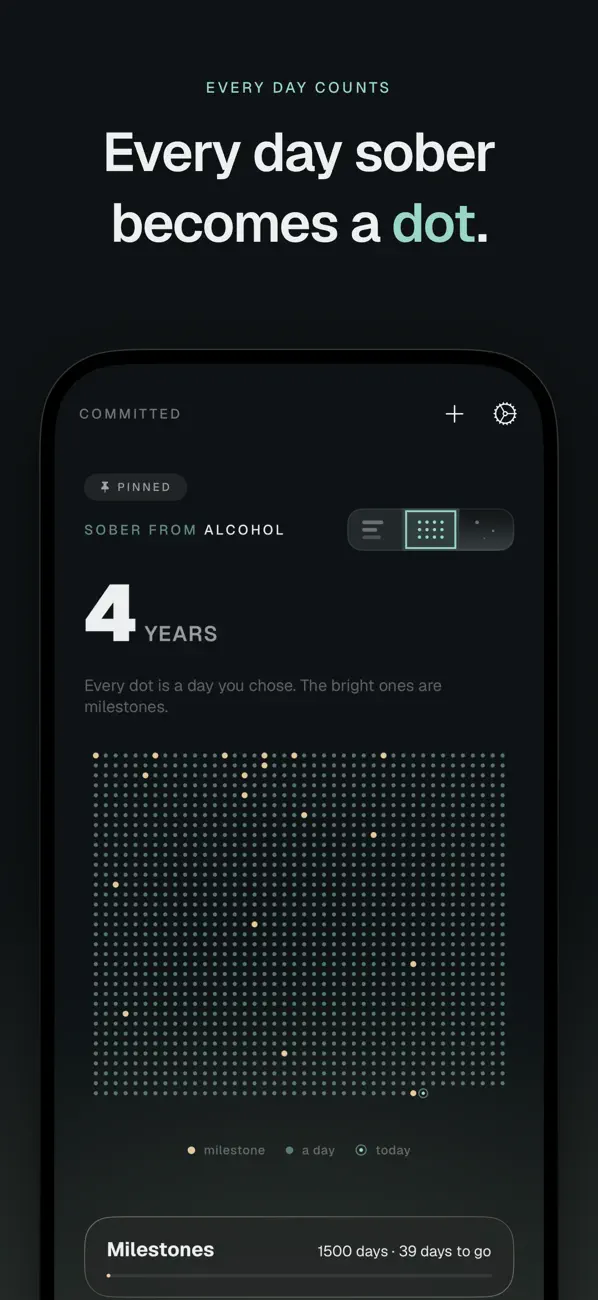
Six Home Screen and desktop styles
Shown with sample commitments.
Lock Screen and Apple Watch
Under the clock, and on your wrist.
A ring that fills toward your next milestone, a line of text, or a card with your count. The same shapes work as Apple Watch complications, with a corner one for the watch.
How to add one
On iPhone
- Touch and hold an empty part of the Home Screen until the apps jiggle.
- Tap Edit, then Add Widget, and search for Committed.
- Pick a style and size, then tap Add Widget.
On Mac
- Control-click the desktop and choose Edit Widgets.
- Find Committed and drag a widget onto the desktop.
Widget questions
Are Committed widgets free?
Widgets are part of Lifetime Unlock, a one-time purchase in the app ($14.99 in the US). Before you unlock, a widget you add shows how to unlock it instead of your count.
Can a widget show a different commitment?
Yes. Touch and hold a widget, choose Edit Widget, and pick the commitment it shows. Two Commitments and Four Commitments let you pick which ones, or show your top ones.
Do widgets work on the Lock Screen?
Yes. Rectangular, circular and inline widgets sit on the iPhone Lock Screen, and the same shapes work as Apple Watch complications.
Do widgets show my count without opening the app?
Yes. Widgets update on their own through the day, and the count turns over at midnight.